
When the email notifications setting is enabled, an email is sent to the email address of the active CyTOF account if clogs are detected, when clogs are resolved, and when acquisition successfully completes or if acquisition unexpectedly stops.
NOTE You must know the SMTP settings for your mail server. Contact your IT department for assistance.
To configure email notifications
1 On the right side of the ribbon, next to the active user account, click the down arrow, and then click User Management.
2 In the Accounts table, locate the account to configure email notifications for, and then enter the following information in the appropriate cells:
• SMTP Host
• SMTP Port
• SMTP Username
• Enable SSL
NOTE CyTOF Administrators will see all accounts and CyTOF Users will see only their accounts. If you do not know your SMTP settings, contact your IT department for assistance.
3 Click Change SMTP Password.
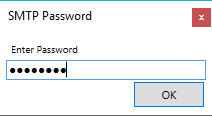
4 Enter the network password. Click OK.
5 Click Test Email Notifications. If the settings are correctly configured, a test email is delivered to the email address associated with the active account.